 Treeet
How to use Signature resizer
- 01Add photosChoose files or drop them on the page.
- 02Done on your deviceNothing is uploaded. Adjust settings if you like.
- 03DownloadSave the result, or everything as one ZIP.
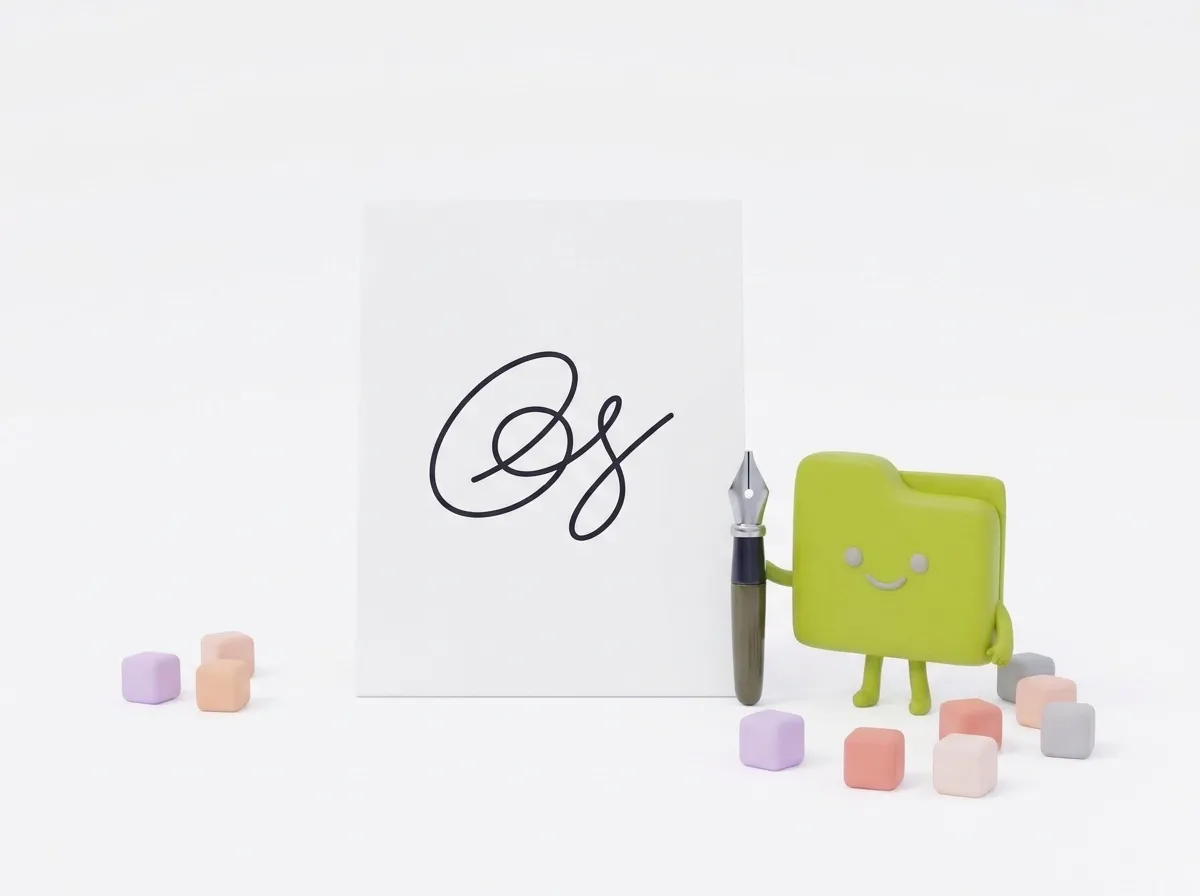
Paper shadows gone.
We remove the paper and shadows, crop to the ink, make it black or blue, and resize it for the form.
Signature resizer turns a phone photo of your signature into a clean image at the size forms ask for, with the paper, shadows and specks removed. It’s free and runs in your browser, so your signature is never uploaded.
How to resize a signature for a form
- Sign on plain white paper with a dark pen, and take a close, straight photo in good light.
- Set the size, ink color and background in the settings panel.
- Choose the photo or drop it on the page. It’s cleaned up right away.
- Check the result and press Save or Download. Changed a setting? Press Apply to all files.
Taking a good signature photo
- Use plain white paper without lines, and a black or dark blue pen. Gel and felt-tip pens give darker strokes than ballpoints.
- Sign a little larger than usual; the tool will scale it down.
- Photograph from directly above, in daylight or bright room light, and keep your phone’s shadow off the paper.
- Fill most of the frame with the signature, but leave a little paper around it.
What the tool does to your photo
- It works out how bright the paper is across the photo, so shadows and uneven light disappear.
- It separates the ink from the paper and removes small specks and dust.
- It crops tightly around the ink, leaving a small margin.
- It recolors the ink and fits the signature into the size you chose, centered and without stretching.
What the settings do
- Ink colour: Black, Blue, or As in the photo.
- Background: White (JPG) for most forms, or Transparent (PNG) to place the signature on documents.
- Size: 140 × 60 px, 300 × 100 px, 600 × 200 px, or Original size (cleaned, max 2400 px). Some application forms ask for small sizes like 140 × 60 px; check what yours says.
- Clean-up strength: 10 to 90%, 50% by default. Higher removes more shadows and paper texture; lower keeps faint, thin strokes.
- File size limit: No limit, or under 20, 50, 100 or 200 KB.
Common problems and fixes
- “We couldn’t find a signature”: take a closer photo of dark ink on plain light paper.
- Lines from ruled paper or shadows are left: raise Clean-up strength, or sign again on blank paper.
- Thin strokes are broken or missing: lower Clean-up strength and use a darker pen.
- There’s a stray mark beside the signature, or it looks too small: other dark things in the photo, like a pen or the table edge, count as ink. Crop the photo to just the signature with Crop image first.
- The transparent PNG is over the size limit: choose White (JPG) or a smaller size.
Privacy
Your signature is cleaned and resized in your browser. It isn’t uploaded or stored, which is how it should be for something that can authorize payments and contracts.
Guides
At a glance
- Price
- Free. No sign-up, no watermark.
- Privacy
- Files are processed in your browser and never uploaded.
- Accepts
- JPG, JPEG, PNG, WEBP, HEIC, HEIF, AVIF, BMP
- You get
- JPG
- Batch
- Convert many files at once and download them as a ZIP
- Works in
- Chrome, Edge, Firefox and Safari, on phones and computers
- Offline
- Keeps working without internet once the page has loaded
Questions
Is my signature uploaded?
No. Everything happens in your browser, so your signature never leaves your device.
Can I get a transparent background?
Yes. Choose Transparent to get a PNG you can place on documents.
Does it work on my phone?
Yes. Take or pick a photo right on your phone; nothing is uploaded.
How do I resize my signature to 140 × 60 pixels?
Choose 140 × 60 px under Size and add the photo. The signature is fitted inside that size on a white background.
Why is there white space around my signature?
The signature keeps its shape inside the box. If the box is a different shape, the leftover space is filled with white or left transparent.
Can I keep my pen’s original color?
Yes. Set Ink colour to As in the photo. The paper is still cleaned away.
Can I use the result to sign a PDF?
Use Sign PDF. Its Upload tab removes the paper from a signature photo, or you can draw or type your signature there.
Can I clean several signatures at once?
Yes. Add several photos and each one is cleaned and resized with the same settings, ready to download as one ZIP.
What if the form has a KB limit too?
Set File size limit to the closest value under the form’s limit, such as Under 20 KB.